Depending on how you receive the files, you may be given files split into EUR, GBP, USD or you may receive one file which includes all of the data. The following process will work for both of these file types.
Step 1 - Create your import period
1. Go to "Royalty -> Sales Imports"
2. Click "New" in the Icon Menu
3. Choose "Distributor Sales - File Import Queue Job" from the list
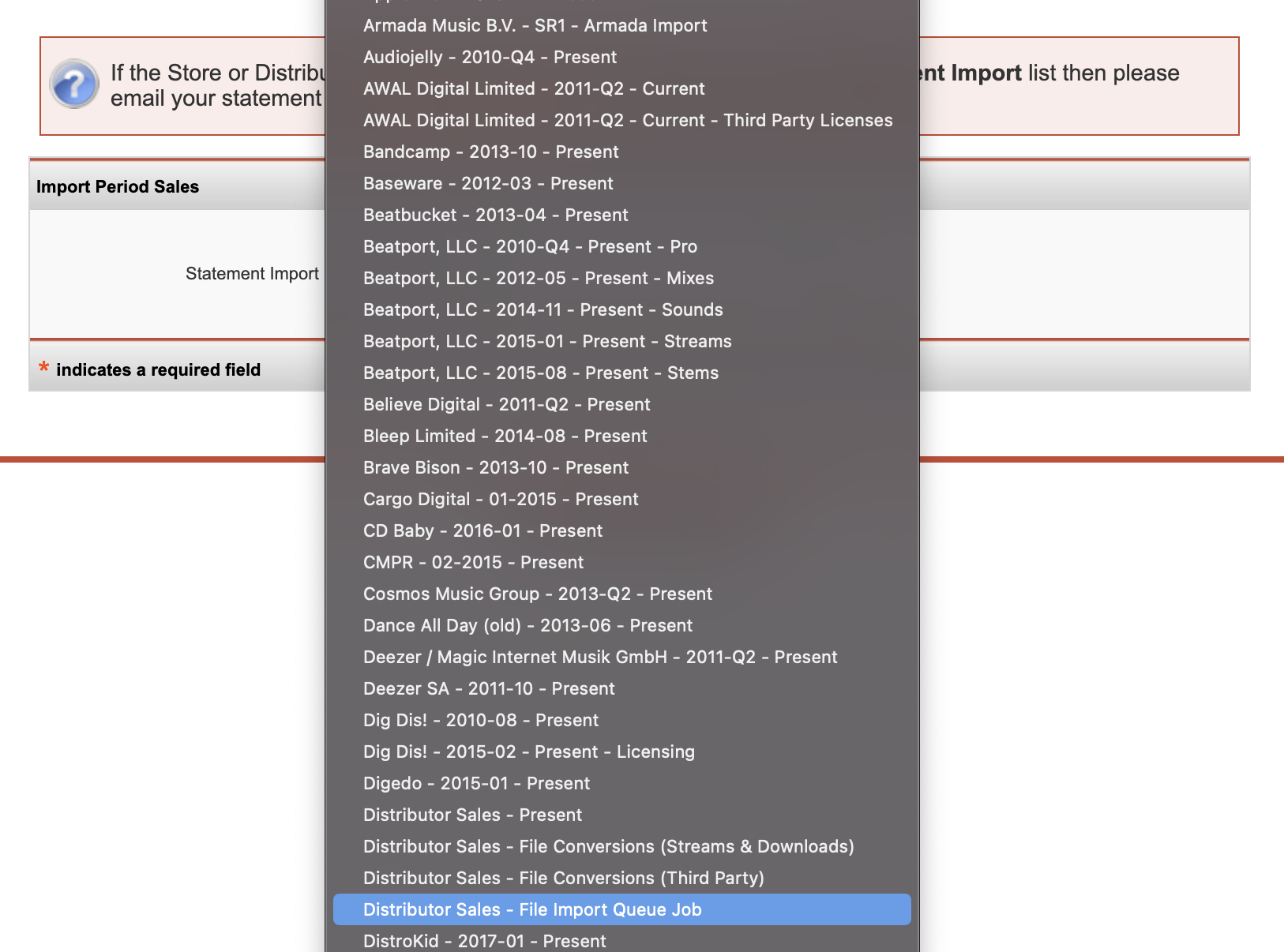
4. Select "Spotify" form the sub menu
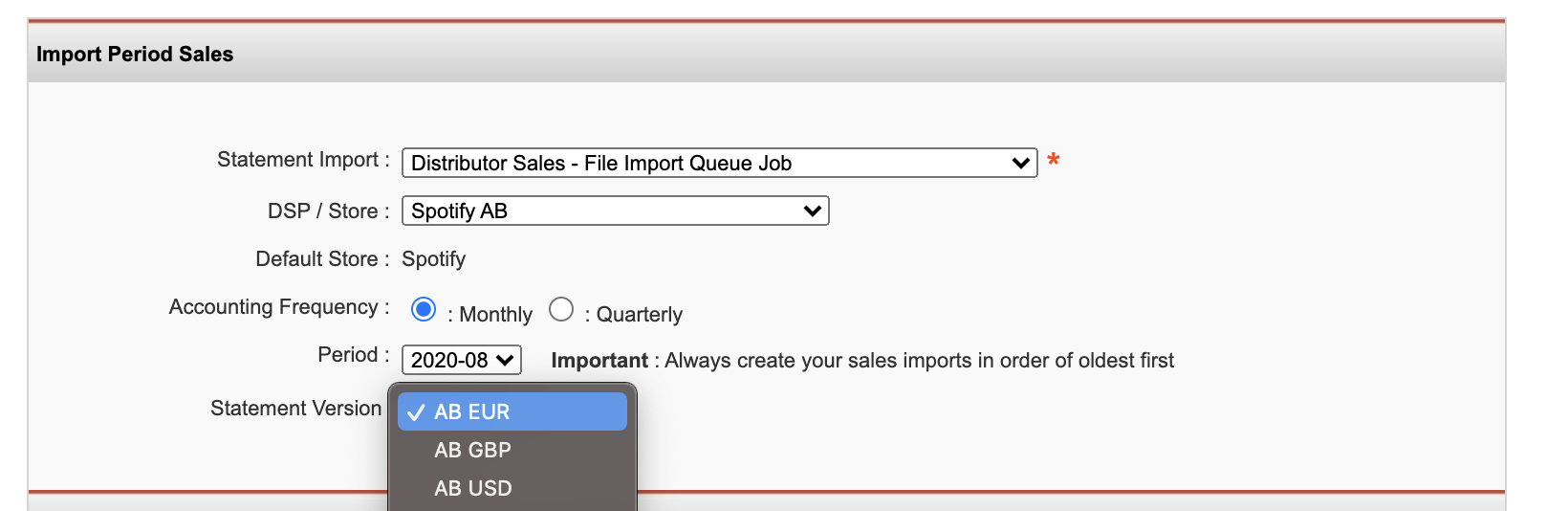
5. Select your period
6. Select your import currency, you will need to create EUR, GBP & USD for each period, even if you only receive one file. The import only imports lines relevant to this territory.
7. Click "Create"
Step 2 - IMPORTANT - Choosing the import template
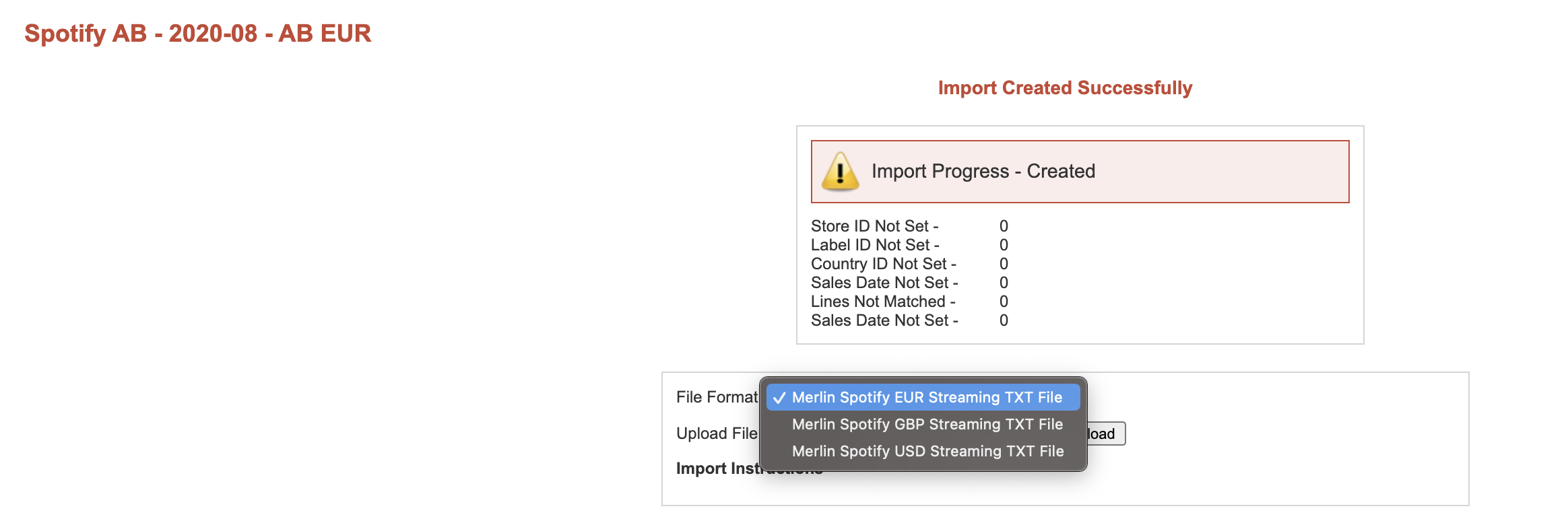
Once the import period is created, you need to choose the template, this tells the system which lines to read for each statement.
1. Select the import template that matches the port you have created, i.e. EUR, GBP, USD
Step 3 - Uploading the file
1. Choose the relevant file to upload, this will be formatted labelname-track-for-streaming-DATE.txt
2. Once selected click "Upload"
The file will now import in the background, depending on the size of the file, you may wish to check back in a few minutes to ensure it has imported correctly.
Note: The same can be done for the breakages files, just select the breakages import during step 2.